> ## Documentation Index
> Fetch the complete documentation index at: https://docs.withcortex.ai/llms.txt
> Use this file to discover all available pages before exploring further.
# Variables
> Learn how to create and use variables to securely manage reusable values across your workflows
## What are Variables?
Variables provide a secure and centralized way to manage reusable values across your workflows. They are ideal for storing sensitive information like API keys, credentials, configuration settings, and other frequently used data.
By using variables instead of hardcoding values directly in your workflow steps, you can:
* **Enhance Security**: Keep sensitive data like API keys and credentials secure
* **Improve Maintainability**: Update values in one place rather than throughout multiple workflows
* **Simplify Development**: Reference common values easily across different steps and workflows
## Creating Variables
You can create variables from two places:
* By clicking the **Variables** button from the workflow builder toolbar
* Or since it's a global resource (Organization level), you can also create them from the [Variables](https://withcortex.ai/c/settings/variables) section in the settings
In this example, we'll create a variable from the workflow builder toolbar:
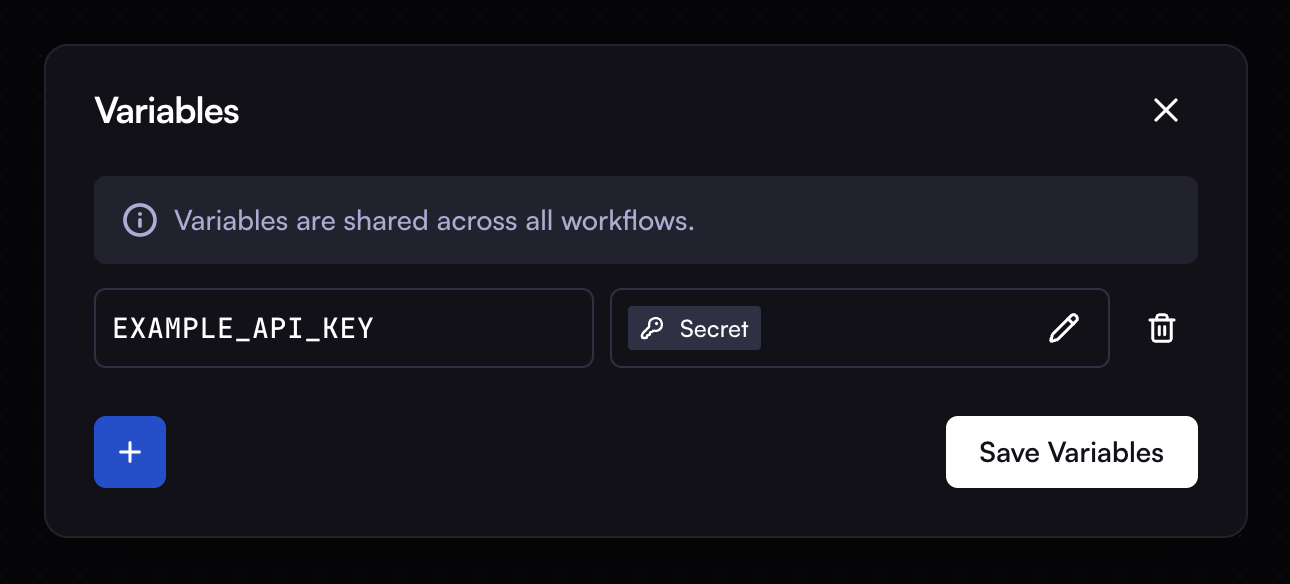
1. Click the **Variables** button from the workflow builder toolbar, which will open the variables modal where you can create, edit, or delete variables
2. Click the **New Variable** button to create a new variable
3. Enter a key for the variable (e.g., `API_KEY`)
4. Enter the value for the variable (e.g., `1234567890`)
5. Enable the **Secret** option if the variable contains sensitive information
6. Click the **Create** button
You should now see the variable in the variables modal.

 ## Using Variables
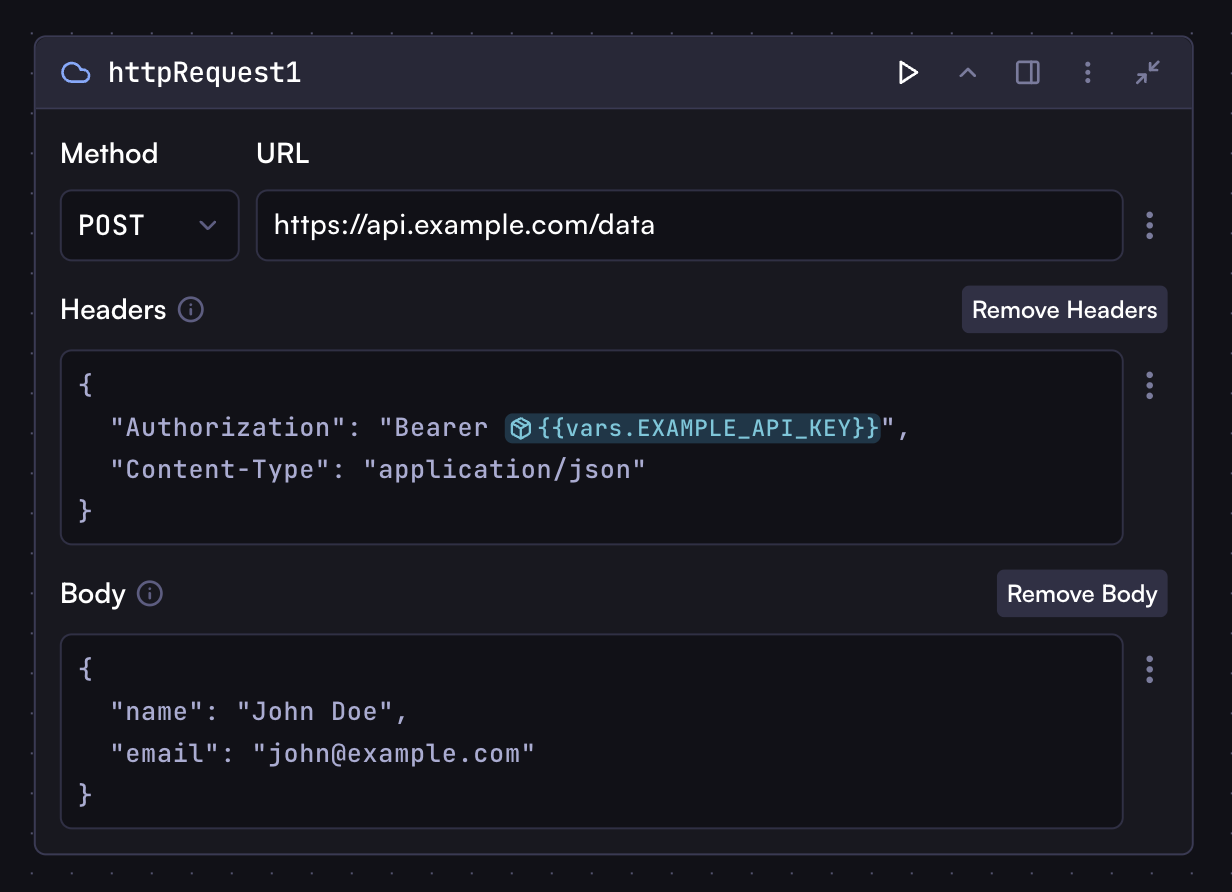
Variables can be referenced in any step of your workflow using syntax as same you [accessing step outputs](/workflows/steps/overview#variables), But we use `vars` object to access them.
```
vars.API_KEY
```
## Using Variables
Variables can be referenced in any step of your workflow using syntax as same you [accessing step outputs](/workflows/steps/overview#variables), But we use `vars` object to access them.
```
vars.API_KEY
```
 ## Secret Variables
Secret variables provide an extra layer of security for sensitive information like API keys, passwords, and access tokens. They have the following security features:
* **End-to-End Encryption**: Variables are encrypted at rest and in transit
* **One-Way Storage**: Once created, the value cannot be viewed or retrieved by anyone, including workflow owners and administrators
* **Runtime-Only Access**: Values are only decrypted and accessible during workflow execution
* **Automatic Masking**: Any attempts to log or output the variable value will show as `********` instead of the actual value
This ensures your sensitive data remains secure while still being usable in your workflows.
## Secret Variables
Secret variables provide an extra layer of security for sensitive information like API keys, passwords, and access tokens. They have the following security features:
* **End-to-End Encryption**: Variables are encrypted at rest and in transit
* **One-Way Storage**: Once created, the value cannot be viewed or retrieved by anyone, including workflow owners and administrators
* **Runtime-Only Access**: Values are only decrypted and accessible during workflow execution
* **Automatic Masking**: Any attempts to log or output the variable value will show as `********` instead of the actual value
This ensures your sensitive data remains secure while still being usable in your workflows.