> ## Documentation Index
> Fetch the complete documentation index at: https://docs.withcortex.ai/llms.txt
> Use this file to discover all available pages before exploring further.
# Loop
> Process a list of items by executing the same step repeatedly, handling each element one at a time in sequence.
 ## Enabling Loop
To enable looping for a step:
1. Click the step's options menu (⋮)
2. Click `Add Loop`
3. Enter a loop expression that determines how the step iterates
## Loop Expression
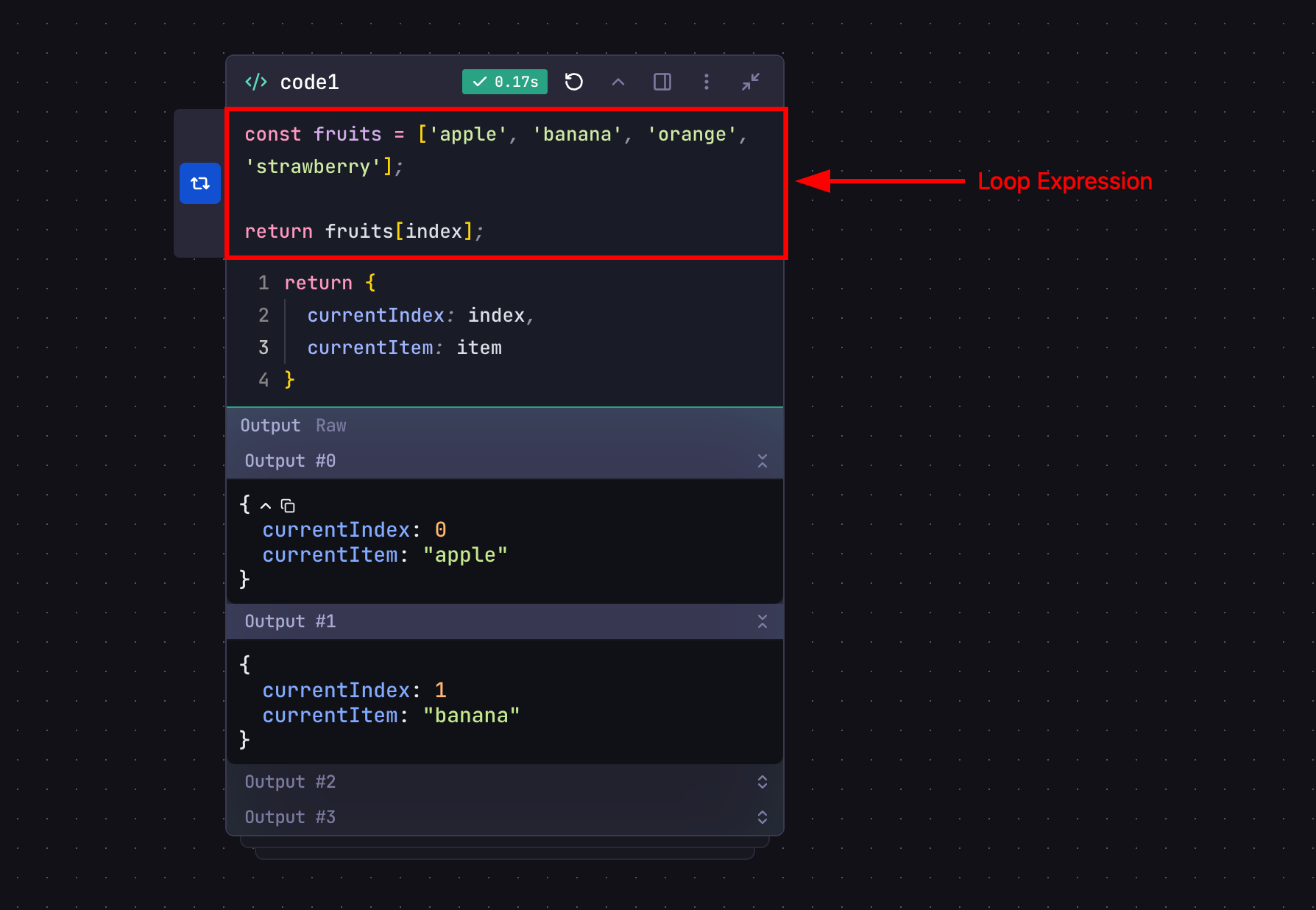
* A JavaScript expression that returns the next item to process
* Returns `null`, `undefined`, or `false` to terminate the loop
* Has access to special variables:
* `index`: Current iteration number (starts at 0)
* `item`: Current value being processed
## Loop Output
* When loop is enabled, the step's output becomes an array
* Each array element contains the output from one iteration
* Output array maintains the order of processing
## Loop Expression Rules
* Return one item at a time from the array: `return items[index];`
* Never return the full array (causes infinite loop)
## Accessing Output
When a step has looping enabled, its output becomes an array containing results from each iteration:
```javascript theme={"system"}
const results = modelStep.output.map((item) => item.message);
```
When accessing the output of a looped step in code steps, you must use array methods like `map()` to access individual iteration results.
## Loop Termination
Loop stops when the expression returns `null`, `undefined`, or `false`.
Array bounds automatically handle termination:
```javascript theme={"system"}
return items[index]; // Returns undefined when index >= length
```
## Examples
Here are some practical examples demonstrating how to use loops in your workflows:
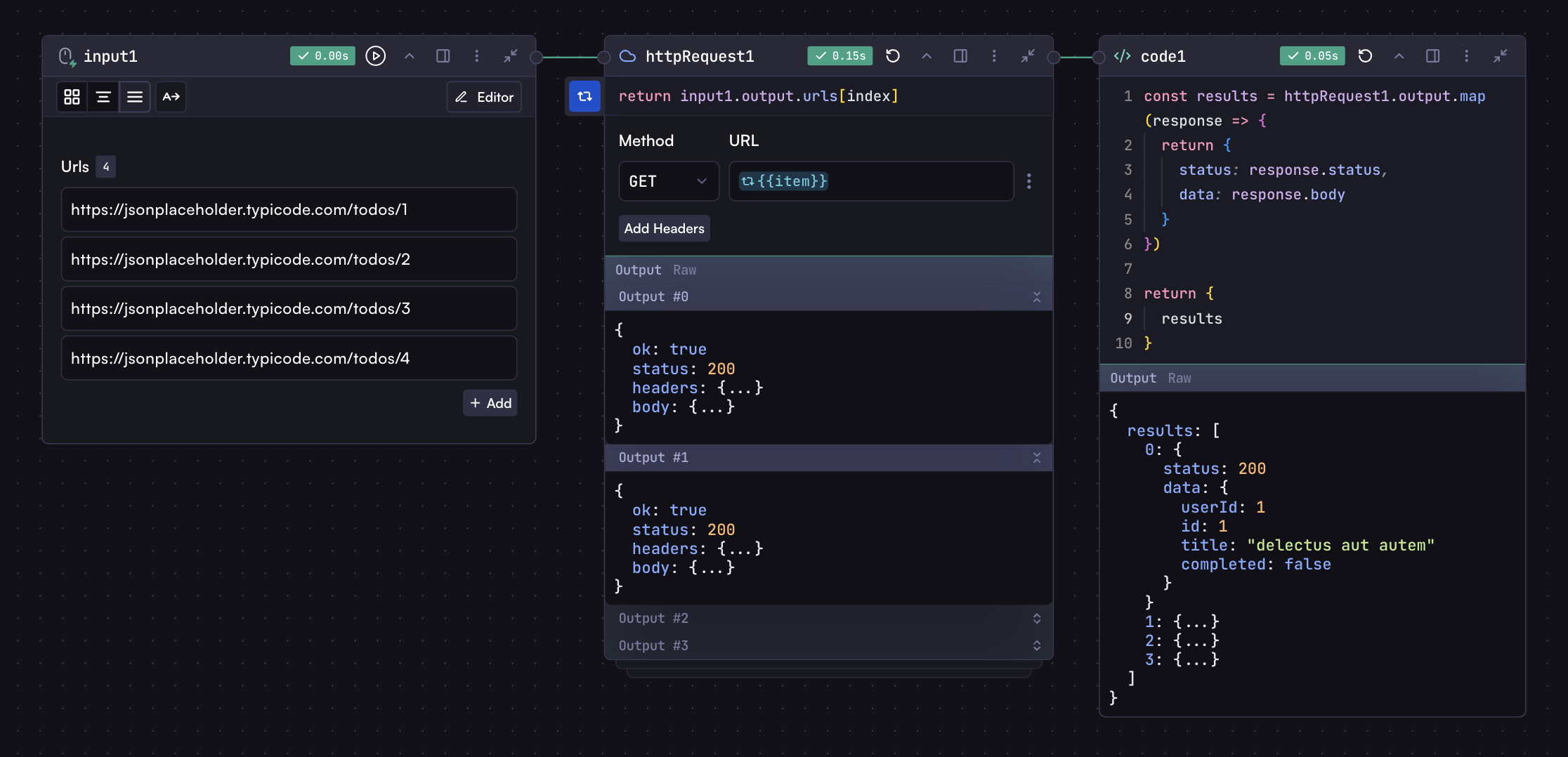
### Parallel API Requests
Process multiple API endpoints simultaneously:
## Enabling Loop
To enable looping for a step:
1. Click the step's options menu (⋮)
2. Click `Add Loop`
3. Enter a loop expression that determines how the step iterates
## Loop Expression
* A JavaScript expression that returns the next item to process
* Returns `null`, `undefined`, or `false` to terminate the loop
* Has access to special variables:
* `index`: Current iteration number (starts at 0)
* `item`: Current value being processed
## Loop Output
* When loop is enabled, the step's output becomes an array
* Each array element contains the output from one iteration
* Output array maintains the order of processing
## Loop Expression Rules
* Return one item at a time from the array: `return items[index];`
* Never return the full array (causes infinite loop)
## Accessing Output
When a step has looping enabled, its output becomes an array containing results from each iteration:
```javascript theme={"system"}
const results = modelStep.output.map((item) => item.message);
```
When accessing the output of a looped step in code steps, you must use array methods like `map()` to access individual iteration results.
## Loop Termination
Loop stops when the expression returns `null`, `undefined`, or `false`.
Array bounds automatically handle termination:
```javascript theme={"system"}
return items[index]; // Returns undefined when index >= length
```
## Examples
Here are some practical examples demonstrating how to use loops in your workflows:
### Parallel API Requests
Process multiple API endpoints simultaneously:
 ### File Batch Processing
Process multiple files with consistent logic:
### File Batch Processing
Process multiple files with consistent logic:
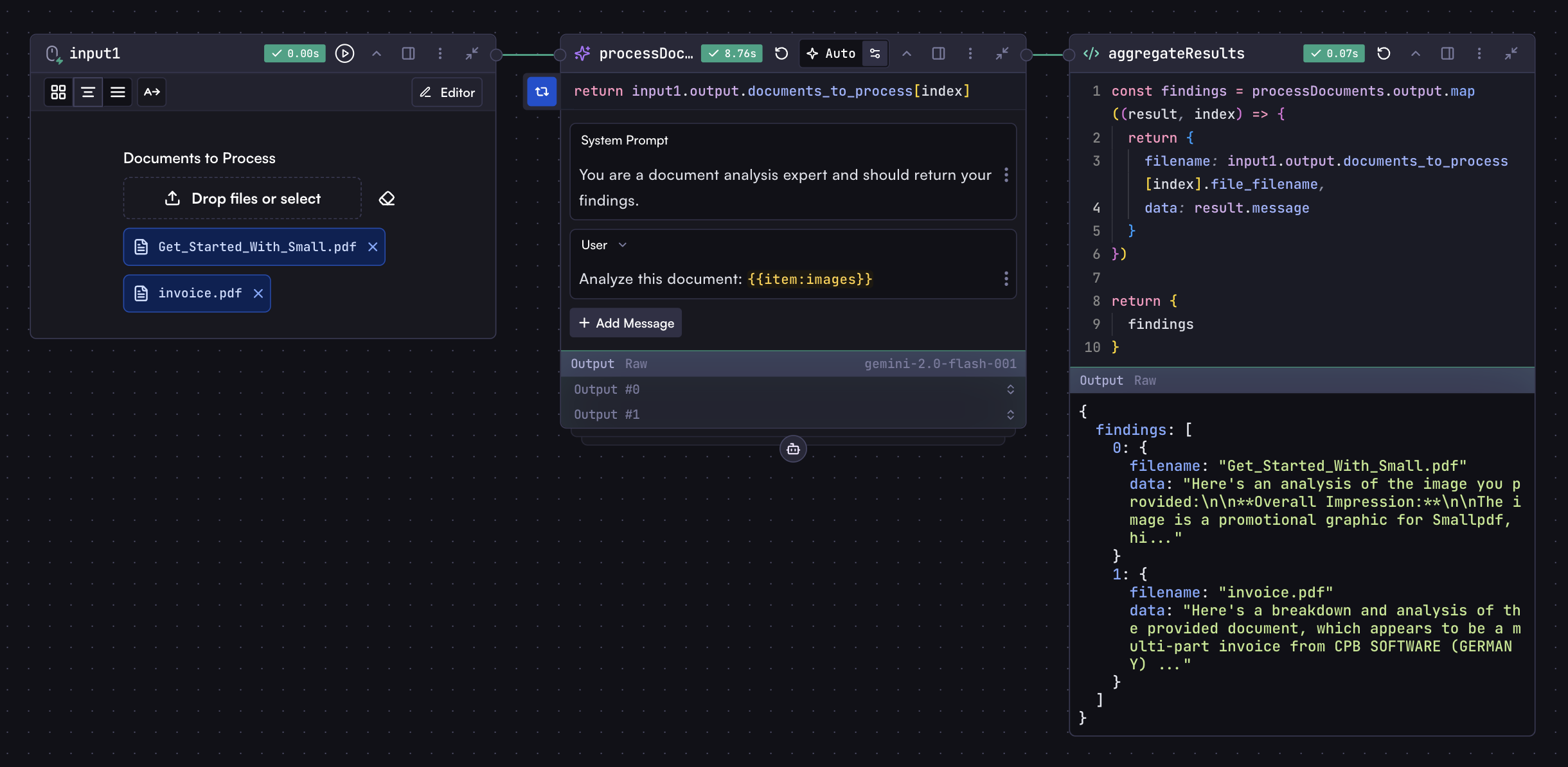 This eliminates the need for separate model steps for each file.
### Object Properties Processing
For objects, you can loop through keys or values, so your loop expression should return an object with the key and value:
```javascript theme={"system"}
const entries = Object.entries({
apple: 'red',
banana: 'yellow',
orange: 'orange',
});
return entries[index]
? { key: entries[index][0], value: entries[index][1] }
: null;
```
This approach lets you process each property with the same logic while maintaining property names.
## Remove Loop
To remove a loop from a step:
1. Click the step's options menu (⋮)
2. Click `Remove Loop`
This eliminates the need for separate model steps for each file.
### Object Properties Processing
For objects, you can loop through keys or values, so your loop expression should return an object with the key and value:
```javascript theme={"system"}
const entries = Object.entries({
apple: 'red',
banana: 'yellow',
orange: 'orange',
});
return entries[index]
? { key: entries[index][0], value: entries[index][1] }
: null;
```
This approach lets you process each property with the same logic while maintaining property names.
## Remove Loop
To remove a loop from a step:
1. Click the step's options menu (⋮)
2. Click `Remove Loop`