> ## Documentation Index
> Fetch the complete documentation index at: https://docs.withcortex.ai/llms.txt
> Use this file to discover all available pages before exploring further.
# Deploy
> Learn how to deploy workflows, manage versions, rollback changes, and compare different versions of your workflows.
Deploy creates a versioned release of your workflow that can be used in Cortex Rules and accessed via API.
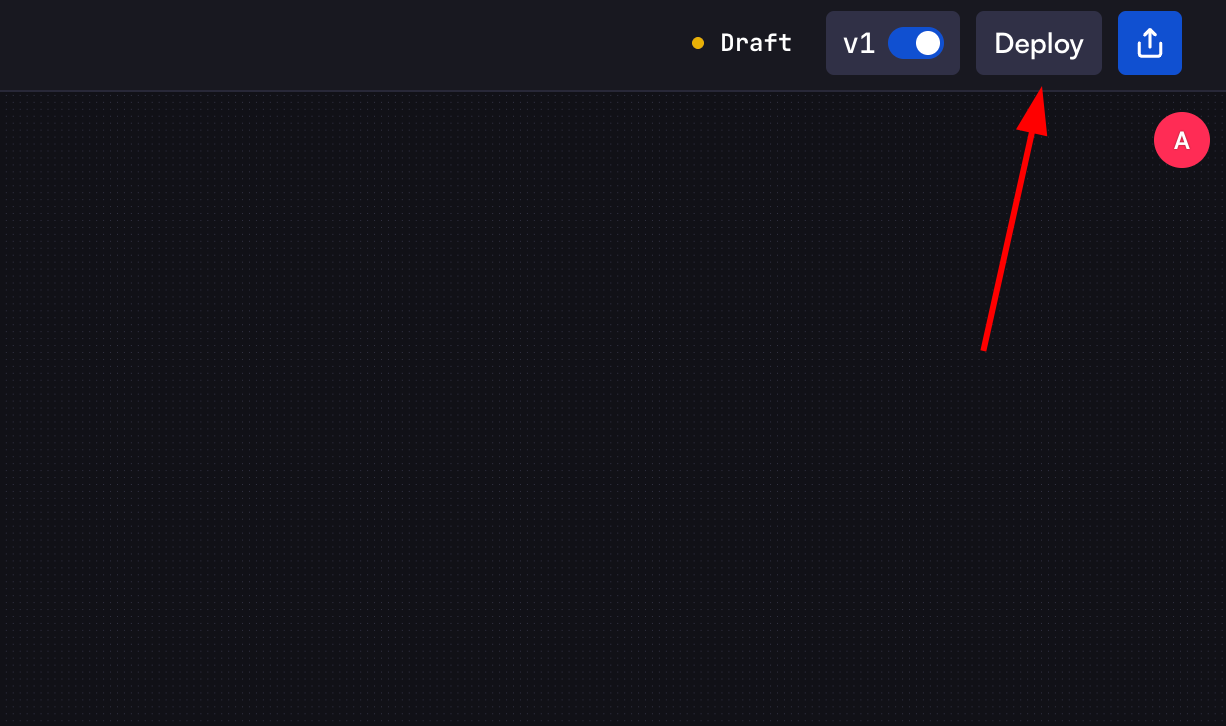 1. Click the `Deploy` button in the top-right corner of the workflow builder
2. In the deploy modal:
* Enter optional release notes to document changes
* Click `Deploy Now` to create the new version
3. The workflow will be deployed as a new version, overwriting the latest version
4. Previous versions remain accessible for rollback or reference
You can still access previous versions by specifying the version number or
rolling back to an earlier version if needed.
## Versions
The Versions page shows the complete version history of your workflow.
1. Click the `Deploy` button in the top-right corner of the workflow builder
2. In the deploy modal:
* Enter optional release notes to document changes
* Click `Deploy Now` to create the new version
3. The workflow will be deployed as a new version, overwriting the latest version
4. Previous versions remain accessible for rollback or reference
You can still access previous versions by specifying the version number or
rolling back to an earlier version if needed.
## Versions
The Versions page shows the complete version history of your workflow.
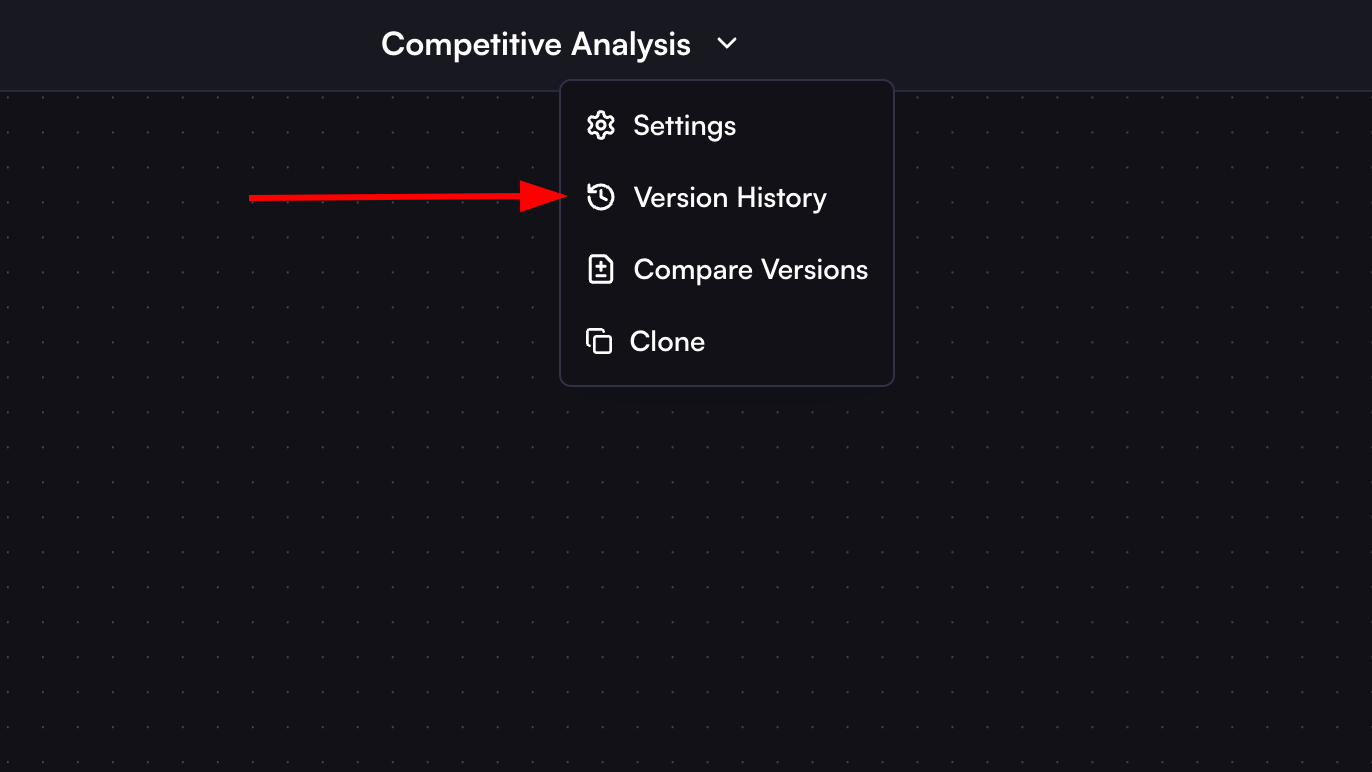 * Version ID: Unique identifier for each version
* Version number (v1, v2, etc.)
* Release notes
* Deployment timestamp
* User who deployed the version
### Version Actions
Each version has three action buttons:
* Version ID: Unique identifier for each version
* Version number (v1, v2, etc.)
* Release notes
* Deployment timestamp
* User who deployed the version
### Version Actions
Each version has three action buttons:
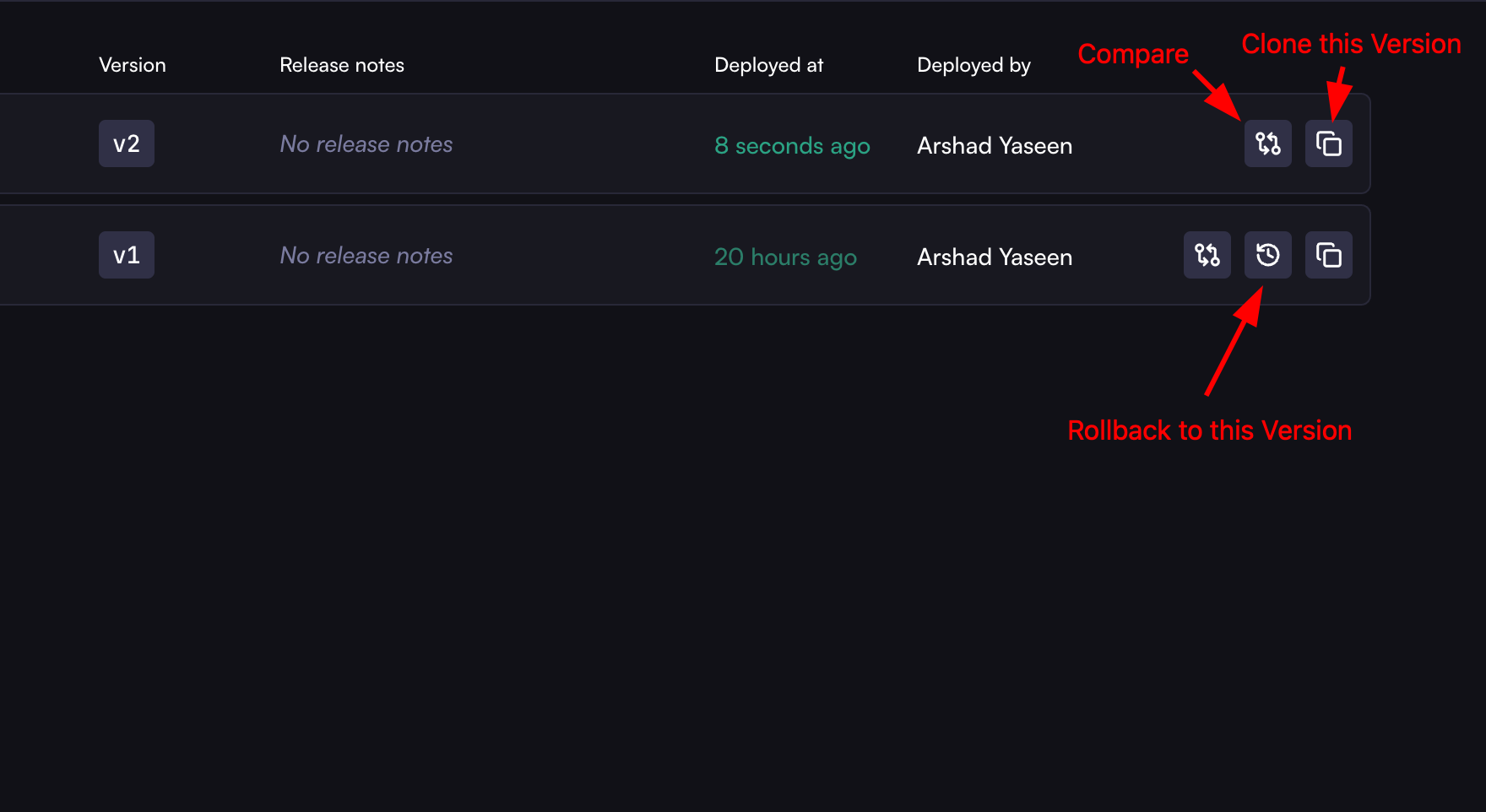 1. **Clone Version**: Creates a copy of that specific version
2. **Rollback**: Reverts to that version (overwrites latest)
3. **Compare**: Compare this version with current workflow
### Viewing Version Details
Click on a version in the Versions list to view its details:
* Complete workflow configuration
* UI view of the workflow at time of deployment
* JSON schema of the workflow
## Rollback Version
Rollback allows you to revert to a previous version of your workflow.
### How to Rollback
1. In the Versions list, find the version you want to rollback to
2. Click the rollback icon (circular arrow)
3. In the rollback modal:
* Review the warning message
* Add optional release notes
* Click "Rollback Now"
4. The selected version becomes the new latest version
## Compare Versions
Compare Versions helps you understand differences between workflow versions.
1. **Clone Version**: Creates a copy of that specific version
2. **Rollback**: Reverts to that version (overwrites latest)
3. **Compare**: Compare this version with current workflow
### Viewing Version Details
Click on a version in the Versions list to view its details:
* Complete workflow configuration
* UI view of the workflow at time of deployment
* JSON schema of the workflow
## Rollback Version
Rollback allows you to revert to a previous version of your workflow.
### How to Rollback
1. In the Versions list, find the version you want to rollback to
2. Click the rollback icon (circular arrow)
3. In the rollback modal:
* Review the warning message
* Add optional release notes
* Click "Rollback Now"
4. The selected version becomes the new latest version
## Compare Versions
Compare Versions helps you understand differences between workflow versions.
 ### Comparison Options
1. **UI Compare**: Visual comparison of workflow layouts
2. **Schema Compare**: Side-by-side JSON schema comparison
3. **View Options**:
* Side by Side: Shows versions in parallel
* Smart Diff: Highlights specific changes between versions
### How to Compare
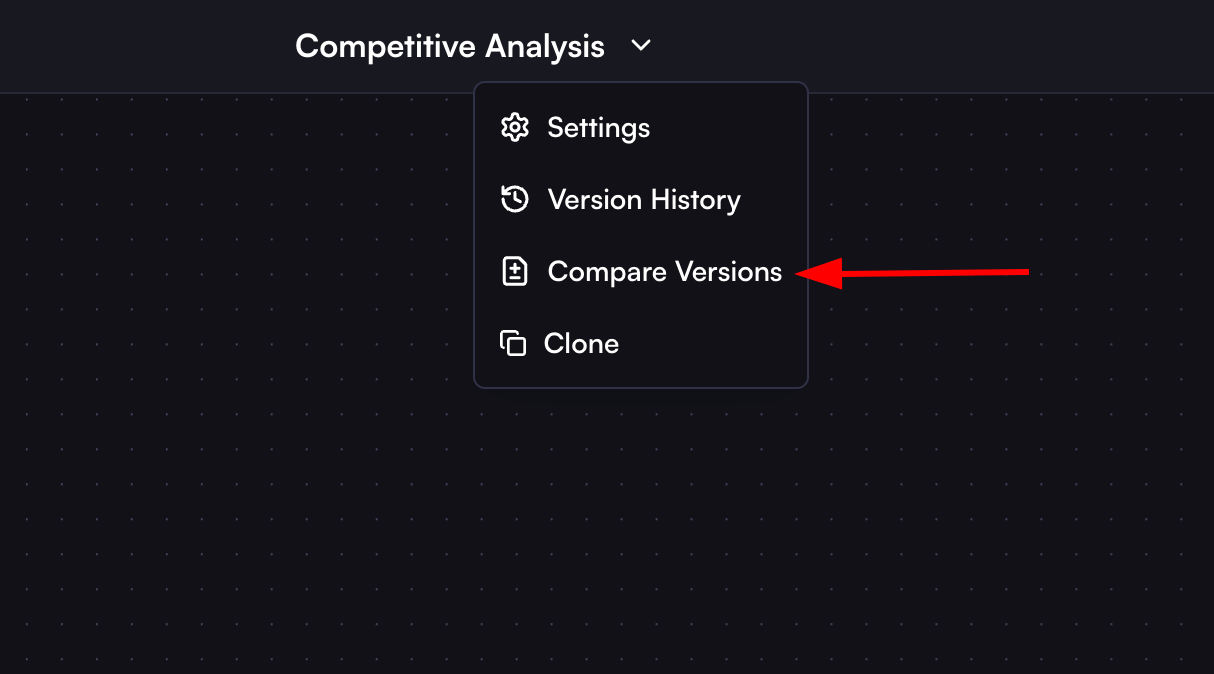
1. Access comparison in two ways:
* Click the compare icon on any version in the Versions list
* Select "Compare Versions" from the workflow menu
2. Select versions to compare:
* Left side: Earlier version
* Right side: Later version or current draft
This versioning system provides complete workflow history tracking and the flexibility to manage changes effectively through deployment, rollback, and comparison features.
### Comparison Options
1. **UI Compare**: Visual comparison of workflow layouts
2. **Schema Compare**: Side-by-side JSON schema comparison
3. **View Options**:
* Side by Side: Shows versions in parallel
* Smart Diff: Highlights specific changes between versions
### How to Compare
1. Access comparison in two ways:
* Click the compare icon on any version in the Versions list
* Select "Compare Versions" from the workflow menu
2. Select versions to compare:
* Left side: Earlier version
* Right side: Later version or current draft
This versioning system provides complete workflow history tracking and the flexibility to manage changes effectively through deployment, rollback, and comparison features.